Login via Google Play Games
Prerequisite
- Android
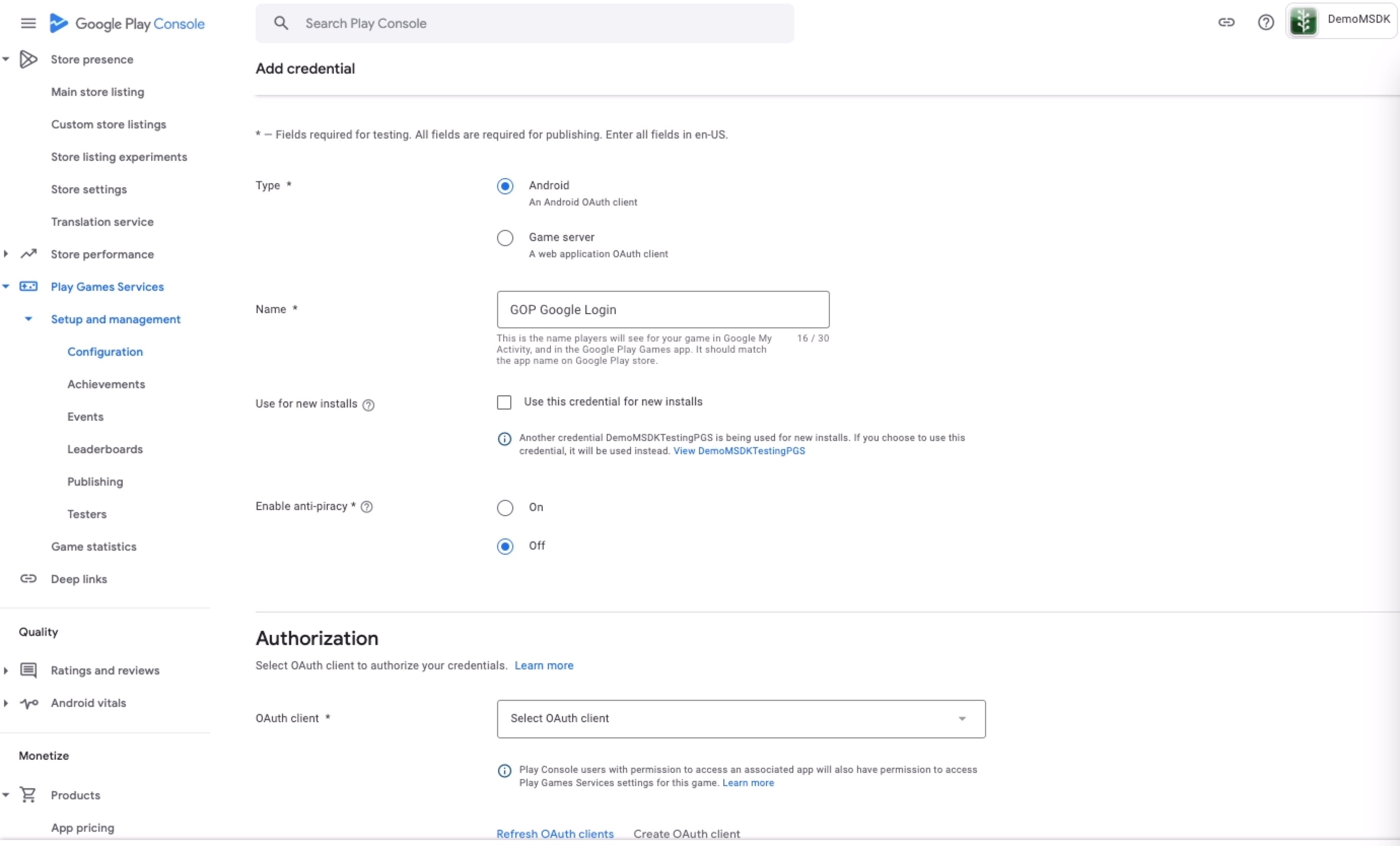
Create a credential from Google Play Console and select an OAuth client which you created from Google Cloud Console
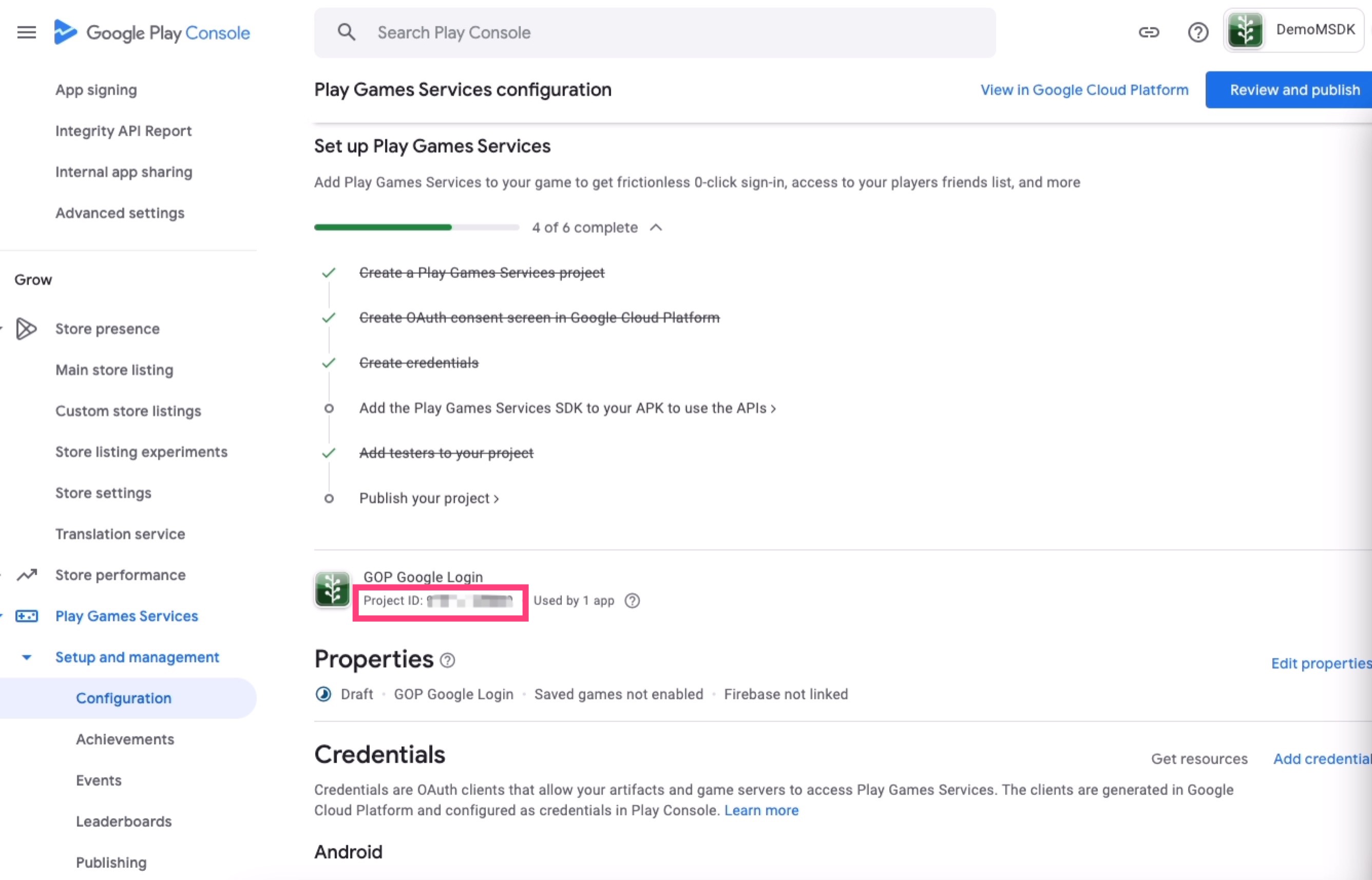
And get the app id from
Add dependencies
- Android
Add the following code in build.gradle on the app-level, and replace $msdk_version with the actual MSDK version.
dependencies {
    implementation "com.garena.sdk.android:login-pgs:$msdk_version"
}
Configuration
- Android
- Unity
- Unreal
Configure AndroidManifest.xml
<?xml version="1.0" encoding="utf-8"?>
<manifest xmlns:android="http://schemas.android.com/apk/res/android">

    ...

    <application ...>

        <meta-data
            android:name="com.google.android.gms.games.APP_ID"
            android:value="[google_play_games_app_id]" />

        <meta-data
            android:name="com.garena.sdk.gms.games.OAUTH_CLIENT_ID"
            android:value="[google_play_games_oauth_client_id]" />

            ....
    </application>

</manifest>
Configure google_play_games_app_id, google_play_games_oauth_client_id in Window -> GMSDK Settings
Configure PlayGamesAppId, PlayGamesOauthClientIdAndroid in Edit -> Project Settings -> Plugins -> Garena MSDK
Usage
- Android
- Unity
- Unreal
AccountManager accountManager = new AccountManager(activity);
accountManager.login(PlatformType.GOOGLE_PLAY_GAMES, onLoginListener);
GMSDKHandler.LoginClient.Login(AccountPlatform.GooglePlayGames, OnLoginCallback);
UMsdkLogin::Login(Google_Play_Games);
Google Play Games Recall
Prerequisite
- Setup Google Play Games Tester Account on Google Console
- If you have imported the Google Play Games dependency, you need to remove the dependency
implementation "com.google.android.gms:play-services-games-v2:17.0.0"
Usage
You should call saveToken after login success (including auto-login success), so that the token on Google Play Games is up to date.
- Android
- Unity
- Unreal
PlayGamesRecallManager recallManager = new PlayGamesRecallManager(activity);
recallManager.saveToken(result -> {...});
GMSDKHandler.LoginClient.SavePlayGamesToken(ret =>
{
   ...
});
MsdkCallbacks = NewObject<UMsdkCallbacks>(this, UMsdkCallbacks::StaticClass());
MsdkCallbacks->OnSavePlayGamesToken.AddDynamic(this, &UTestLoginWidget::OnSavePlayGamesToken);

UMsdkLogin::SavePlayGamesToken();
Checks the Google Play Games sign-in state asynchronously.
- Android
- Unity
- Unreal
recallManager.checkSignInState(result -> {
    ...
});
GMSDKHandler.LoginClient.CheckPlayGamesSignInState(result =>
{
    ...
});
MsdkCallbacks = NewObject<UMsdkCallbacks>(this, UMsdkCallbacks::StaticClass());
MsdkCallbacks->OnCheckPlayGamesSignInState.AddDynamic(this, &UTestLoginWidget::OnCheckPlayGamesSignInState);

UMsdkLogin::CheckPlayGamesSignInState();
Recall tokens and restore login
- Android
- Unity
- Unreal
recallManager.retrieveToken(result -> {
            if (result.isSuccess()) {
                // Currently server only returns the last RecallToken.
                // But in the future we may return multiple tokens, that's why here's a list
                List<RecallToken> tokens = result.unwrap();
                if (!tokens.isEmpty()) {
                    RecallToken recallToken = tokens.get(0);
                    recallManager.restoreLogin(recallToken, callback);
                }
            }
});
GMSDKHandler.LoginClient.RecallPlayGamesLogin(result =>
{
    if (result.resultCode == ErrorCode.Success)
    {
        ...
    }
    else
    {
        ...
    }
});
MsdkCallbacks = NewObject<UMsdkCallbacks>(this, UMsdkCallbacks::StaticClass());
MsdkCallbacks->OnRecallPlayGamesLogin.AddDynamic(this, &UTestLoginWidget::OnRecallPlayGamesLogin);

UMsdkLogin::RecallPlayGamesLogin();