In-App Purchase
Overview
Before you begin, please make sure you have completed the Getting Started tutorial.
Setup
MSDK provides multiple payment channels in separate modules.
- Android
- iOS
- Unity
- Unreal
You can choose from Google Play or Huawei AppGallery according to your requirements.
- Google Play
- Huawei
Setup dependency
Add the following code in build.gradle on the app-level, and replace $msdk_version with the actual MSDK version.
implementation "com.garena.sdk.android:payment-google:$msdk_version"
Setup manifest
Make sure you have declared applicationId in your AndroidManifest.xml file.
<meta-data
   android:name="com.garena.sdk.applicationId"
   android:value="YourAppId" />
Setup dependency
- Add the following content to
build.gradleon the project-level
buildscript {
  // setup huawei maven repository URL
  repositories {
    maven { url "https://developer.huawei.com/repo/" }
  }

  // import huawei gradle plugin
  dependencies {
    classpath 'com.huawei.agconnect:agcp:1.6.2.300'
  }
}
- apply the Huawei plugin
build.gradleon the app-level
apply plugin: 'com.huawei.agconnect'
- Import the Huawei module
build.gradleon the app-level and replace$msdk_versionwith the actual MSDK version.
implementation "com.garena.sdk.android:payment-huawei:$msdk_version"
Setup manifest
Declare Huawei cpid in AndroidManifest.xml
<meta-data
android:name="com.huawei.hms.client.cpid"
android:value="cpid=[huawei_cpid]" />
Setup config file
Put the agconnect-services.json file into your app module. More details
Apple App Store is the primary payment channel.
Before making any purchases, please first register your payment to enable a listener for updates. If your app has unfinished transactions, the listener receives them once. Without the Task to listen for these transactions, your app may miss them.
We recommend you call this immediately after login, as a session is necessary to register payments.
[MSDKPaymentManager.shared registerPay];
Only iOS platform requires:
Before making any purchases, please first register your payment to enable a listener for updates. If your app has unfinished transactions, the listener receives them once. Without the Task to listen for these transactions, your app may miss them.
We recommend you call this immediately after login, as a session is necessary to register payments.
UMsdkPaymentiOS::RegisterPay();
Core Purchase Flow
Retrieve All Payment Items
Retrieve a list of all payment items, including promotional items, rebate items and app items.
- Android
- iOS
- Unity
- Unreal
By default, getChanneList only returns non-rebate items. If you already have fetched rebate options and have acquired a valid rebate ID, then it's possible to fetch only the items related to this ID. To do this, please pass the rebate ID by this method builder.setRebateId(id)
Additionally, builder.setRebateId(PaymentManager.ALL_ITEMS) can be used to fetch all items, both rebate and non-rebate, then you can perform your own filtering.
    PaymentInfoRequestParams.Builder paramsBuilder = new PaymentInfoRequestParams.Builder();

    paramsBuilder.setLocalizeProductPrice(true or false);
    paramsBuilder.setRebateId(PaymentManager.NON_REBATE_ITEMS);

    PaymentManager.getChannelList(this, paramsBuilder.build(), result -> {
        // handle channel list result
        if(result.isSuccess()) {
         PaymentChannelInfo info = result.unwrap();
         LocalizeResult localizeResult = info.getLocalizeResult();
            List<PaymentChannel> channels = info.getChannels(); // by right, this should be a list of length 1

            if(channels.size() >= 1) {
             PaymentChannel channel = channels.get(0);

             List<Denomination> items = channel.getItems();

                // render your UI with the items
            } else {
                // this won't happen
            }

        } else {
         MSDKError error = result.getErrorInfo();
         // handle error
        }
    });
[MSDKPaymentManager.shared setProductPrefixForIAPQuery:prefix]; // Apple product item prefix
[MSDKPaymentManager.shared loadPaymentOptionsWithRoleID:0
                                               serverID:0
                                                 locale:appLocale // current device locale
                                          localizeProductPrice:true
                                                  items:itemIDs // item IDs for filtering
                                                rebates:rebateIDs // rebateIDs for filtering
                                               appItems:appItemIDs // appItemIDs for filtering
                                             completion:^(MSDKPaymentOptionInfo * paymentOptionInfo) {
    NSLog(@"%@", paymentOptionInfo);
}];
Note: You must call the setProductPrefixForIAPQuery API with a valid prefix to enable localization of the product price when the localizeProductPrice is true.
var loadIAPItemsParams = new LoadIAPItemsParams
{
    ServerId = SERVER_ID,
    RoleId = ROLE_ID,
    RebateFlag = RebateFlag.AllItems,
    ItemIds = !string.IsNullOrEmpty(_itemIds) ? _itemIds.Split(',') : null,
    RebateIds = !string.IsNullOrEmpty(_rebateIds) ? _rebateIds.Split(',') : null,
    AppItemIds = !string.IsNullOrEmpty(_appItemIds) ? _appItemIds.Split(',') : null,
    Locale = _locale,
    IosProductPrefix = PRODUCT_PREFIX
};

GMSDKHandler.PaymentClient.LoadIAPItems(loadIAPItemsParams, result => { LogScene.LogResult(result); });
iOS
void UMsdkPaymentiOS::LoadPaymentOptions(int RoleID, int ServerID, FString Locale, bool LocalizeProductPrice, TArray<int> Items, TArray<int> Rebates, TArray<int> AppItems);
Android
void UMsdkPayment::LoadPaymentOptionsWithIds(int32 ServerId, int32 RoleId, bool LocalizedPrice,
                                             TArray<int32> ItemIds, TArray<int32> RebateIds)
Retrieve App Item
Retrieve of valid app items information. Game client should use this information to display the corresponding valid app items to users.
- Android
- iOS
- Unity
- Unreal
    PaymentManager.getAppItems(this, serverId, roleId, locale, itemIds, result ->{
        if(result.isSuccess()) {
            List<AppItem> appItems = result.unwrap();
            // render your UI
        } else {
            MSDKError err = result.getErrorInfo();
        }
    });
[MSDKPaymentManager.shared getAppItemOptionsWithRoleID:0
                                              serverID:0
                                                locale:[BTUserSettings sharedInstance].appLocale
                                              appItems:inputAppItemIDs
                                            completion:^(MSDKAppItemOptionsRet *ret) {
    if (ret.flag == MSDKeFlagSucc) {
        for (MSDKAppItemOptionItem *it in ret.items) {
            NSDictionary *data = @{@"id"          : @(it.appItemId),
                                   @"name"        : it.name,
                                   @"description" : it.appItemDescription,
                                   @"icon"        : it.icon
                                   };
            NSLog(@"App Item: %@", data);
        }
    }
}];
var appItems = string.IsNullOrEmpty(_appItemOptionsAppItemIds)
    ? Array.Empty<string>()
    : _appItemOptionsAppItemIds.Split(',');
var getAppItemsParams = new LoadAppItemsParams
{
    AppItemIds = appItems,
    Locale = _locale,
};
GMSDKHandler.PaymentClient.LoadAppItems(getAppItemsParams, LogScene.LogResult);
void UMsdkPaymentiOS::GetAppItemOptions(int RoleID, int ServerID, FString Locale, TArray<int> AppItems)
Make Payment
After retrieving the payment options, you can initiate a payment request using the following code. The payment request will trigger the platform's native payment flow.
Never use point amount in MSDK callbacks API when topup and redeem succeed. It is not safe if you use this field to add in-game cash balance in your game directly.
Please call the GOP server side API(/app/point/get_balance) to get the new in-game cash balance once you get successful result in MSDK callback API.
- Android
- iOS
- Unity
- Unreal
    // create params with the selected denomination. You should have retrieved the denomination list by step b.1
    PurchaseRequestParams purchaseRequestParams = new PurchaseRequestParams.Builder(itemID).build();

    // pass the request params to SDK
    PaymentManager.purchase(this /* activity instance */, purchaseRequestParams, (result, extra) -> {
        if (result.isSuccess()) {
            TransactionInfo transaction = result.unwrap();

        } else {
            MSDKError error = result.getErrorInfo();
            // handle error

            // since v5.9, we can obtain the exact payment step that the failure occurs
            int paymentStep = extra.getPaymentStep();

            if(paymentStep < PaymentStep.RECEIVE_RESULTS) {
                // the error occurs before google returning the payment results to us.
            }
        }
        PaymentEligibility paymentEligibility = extra.getPaymentEligibility();
        // paymentEligibility can be null, so we MUST do a null check
        if(paymentEligibility != null) {
         // handle eligibility info
        }
    });
MSDKPaymentRequestParameters *params = [[MSDKPaymentRequestParameters alloc] initWithProductID:@"com.game.fishfood.1000" roleID:0 serverID:0 topupLimit:-1 region:nil gameData:@"data:abc"];

[MSDKPaymentManager.shared payWithParam:params completion:^(MSDKPaymentPayRet * _Nonnull ret) {
    if (ret.flag == MSDKeFlagSucc) {
        NSLog(@"payment made and committed to GOP Server successfully");
    } else {
        NSLog(@"Error code: %ld", ret.flag);
        if (ret.extInfo.paymentStep == MSDKPaymentStepCommit) {
            NSLog(@"payment made successfully but failed to commit to GOP Server");
        } else if (ret.extInfo.paymentStep == MSDKPaymentStepConsume) {
           NSLog(@"exception happens. MSDKPaymentStepConsume normally comes with MSDKeFlagSucc");
        } else {
            NSLog(@"failed to make Apple IAP payment");
        }
   }
}];
var purchaseParams = new PurchaseParams
{
    ServerId = SERVER_ID,
    RoleId = ROLE_ID,
    ProductIdentifier = PRODUCT_PREFIX + _productId,
    TopupLimit = topupLimit,
    Region = _region,
    ItemId = _productId,
    GameData = _gameData,
};
GMSDKHandler.PaymentClient.PurchaseProduct(purchaseParams, LogScene.LogResult);
Callbacks
GMSDKHandler.PaymentClient.SetOnDistributeGoodsFailureCallback(OnDistributeGoodsFailure);
GMSDKHandler.PaymentClient.SetOnDistributeGoodsFinishCallback(OnDistributeGoodsFinish);
iOS
void UMsdkPaymentiOS::Pay(const FPaymentRequestParameters &Param);
Android
void UMsdkPayment::Purchase(int32 ServerId, int32 RoleId, FString ItemId, const FString Region,
                            int32 TopupLimit, const FString GameData)
Callbacks
FOnIAPPayFinish OnIAPPayFinish;

FOnIAPPayFailure OnIAPPayFailure;

FOnDistributeGoodsFinish OnDistributeGoodsFinish;

FOnDistributeGoodsFailure OnDistributeGoodsFailure;
Process Pending/Incomplete Transaction
In some cases, a user's purchase may be interrupted or fail to complete due to network issues, server errors, or other problems. To ensure users receive their purchased items and maintain a good user experience, MSDK provides methods to process these pending or incomplete transactions.
You should call these methods:
- After successful user login
- When receiving payment failure callbacks
- When receiving goods distribution failure callbacks
This helps ensure any pending transactions are properly processed and users receive their purchased items.
- Android
- iOS
- Unity
- Unreal
Note that items appearing in the user's inventory consist of both those redeemed with a promotion code via Google Play, and those purchased by following the ordinary purchase flow but failed to be committed due to network or server issues. They can be distinguished by PurchasedItemInfo.isPromotion().
// replace PaymentInfoRequestParams with serverId and roleId
PaymentManager.scanPurchaseInventory(this /* activity instance */, serverId, roleId, result -> {

});
[MSDKPaymentManager.shared iapRestoreFailureDistributeGoodsWithRoleID:0 serverID:0 completion:^(MSDKPaymentDistributeGoodsRet * _Nonnull ret) {
    if (ret.flag == MSDKeFlagSucc) {
        NSLog(@"the request executed succesully");
        for (MSDKPaymentRestoredRequestInfo *info in ret.restoredFailureRequestInfos) {
            if (info.flag == MSDKeFlagSucc) {
                NSLog(@"transaction %@ commited to GOP server successfully", info.requestInfo);
            } else {
                NSLog(@"transaction %@ failed to commit to GOP server", info.requestInfo);
            }
        }
    } else {
        NSLog(@"the request failed for some reason");
    }
}];
Observing Billing Issues
Only available in iOS 16+
StoreKit retrieves any messages from the App Store each time your app launches, and presents them by default.
By calling registerBillingIssueMessage(), MSDK will suppress these messages so you can call them at the appropriate time using displayBillingIssueMessages(scene:).
For example, you may choose to delay messages in views where an interrupting sheet might confuse users, such as in the middle of an onboarding flow, or if your app is providing real-time instructions.
After calling registerBillingIssueMessage(), MSDK will let you know when they receive a message using the delegate didReceiveStoreKitMessage(reason: Int, description: String)
A StoreKit message will appear for issues like subscription items increasing its price, auto-renew subscriptions encountering issues, etc
Manage Subscriptions
Only available in iOS 15+
Call showManageSubscriptionsWithScene: completionHandler: to show a page to manage user's subscriptions. Read more here
GMSDKHandler.PaymentClient.CommitPendingTransactions(SERVER_ID, ROLE_ID, ret =>
{
    LogScene.LogResult(ret);
    if (ret.resultCode == ErrorCode.Success)
    {
        Debug.Log("succeedPurchases: " + JsonUtility.ToJson(ret.data.succeedPurchases));
        Debug.Log("failedPurchases: " + JsonUtility.ToJson(ret.data.failedPurchases));
    }
    else
    {
        Debug.LogError("ScanIAPInventory Failed: " + ret.Description + "," + ret.message);
    }
});
Rebate Card Purchase
Rebate cards allow users to purchase items at a discounted price. When a user purchases a rebate card, they can use it to get a discount on future purchases within a specified time period. The discount amount and validity period varies by rebate card.
Before showing rebate cards to users, you'll need to retrieve the current valid rebate options using the APIs below. Make sure to refresh the list after each purchase since a rebate card's validity can change.
Retrieve Rebate Cards
NEVER try to cache the rebate card data, because the result is changing dynamically.
- Android
- iOS
- Unity
- Unreal
    PaymentManager.getRebateOptions(this, serverId, roleId, locale, rebateIds, result -> {
                if (result.isSuccess()) {
                    List<RebateOptionItem> rebateOptions = result.unwrap();
                    // render the rebate card UI
                } else {
                    MSDKError err = result.getErrorInfo();
                }
            });
[MSDKPaymentManager.shared getRebateOptionsWithRoleID:0
                                             serverID:0
                                             locale:nil
                                             rebates:rebateIDs // rebate card IDs for filtering. If this value is provided, the result will only contain information related to these rebate cards.
                                             completion:^(MSDKRebateOptionsRet *ret) {
    NSLog(@"getRebateOptions completion");
    if (ret.flag == MSDKeFlagSucc) {
      for (MSDKRebateOptionItem *it in ret.items) {
          NSDictionary *data = @{@"description"       : it.rebateCardDescription,
                                 @"id"                : @(it.rebateId),
                                 @"name"              : it.name,
                                 @"owned"             : @(it.isOwned),
                                 @"rebate_amount"     : @(it.rebateAmount),
                                 @"rebate_days"       : @(it.rebateDays),
                                 @"remaining_days"    : @(it.remainingDays),
                                 @"valid_to_purchase" : @(it.isValidToPurchase),
                                 @"valid_to_redeem"   : @(it.isValidToRedeem),
                                 };
          NSLog(@"rebate card item: %@", data)
      }
    }
}];
var getRebateOptionsParams = new LoadRebateOptionsParams()
{
    RebateIds = !string.IsNullOrEmpty(_rebateOptionsRebateIds) ? _rebateOptionsRebateIds.Split(',') : null,
    Locale = _locale,
};
GMSDKHandler.PaymentClient.LoadRebateOptions(getRebateOptionsParams, LogScene.LogResult);
Make Payment
After retrieving the rebate options, you can initiate a payment flow to purchase a rebate item. The process is similar to making a regular in-app purchase, but with an additional rebate ID parameter.
When the purchase is successful, you'll receive a callback with the transaction details.
- Android
- iOS
- Unity
- Unreal
    // create params with the selected denomination
    PurchaseRequestParams.Builder builder = new PurchaseRequestParams.Builder(itemId);
    /* setup builder params*/
    builder.setRebateId(rebateId);

    // pass the request params to SDK
    PaymentManager.purchase(this /* activity instance */, builder.build(), result -> {
        if (result.isSuccess()) {
            TransactionInfo transaction = result.unwrap();

        } else {
            MSDKError error = result.getErrorInfo();
            // handle error
        }
    });
MSDKPaymentRequestParameters *params = [[MSDKPaymentRequestParameters alloc] initWithProductID:@"com.game.fishfood.1000" roleID:0 serverID:0 topupLimit:-1 region:nil gameData:@"data:abc"];

[MSDKPaymentManager.shared payWithParam:params completion:^(MSDKPaymentPayRet * _Nonnull ret) {
    if (ret.flag == MSDKeFlagSucc) {
        NSLog(@"payment made and committed to GOP Server successfully");
    } else {
        NSLog(@"Error code: %ld", ret.flag);
        if (ret.extInfo.paymentStep == MSDKPaymentStepCommit) {
            NSLog(@"payment made successfully but failed to commit to GOP Server");
        } else if (ret.extInfo.paymentStep == MSDKPaymentStepConsume) {
           NSLog(@"exception happens. MSDKPaymentStepConsume normally comes with MSDKeFlagSucc");
        } else {
            NSLog(@"failed to make Apple IAP payment");
        }
    }
   });
}];
var purchaseParams = new PurchaseParams
{
    ServerId = SERVER_ID,
    RoleId = ROLE_ID,
    ProductIdentifier = PRODUCT_PREFIX + _productId,
    TopupLimit = topupLimit,
    Region = _region,
    ItemId = _productId,
    GameData = _gameData,
};
GMSDKHandler.PaymentClient.PurchaseProduct(purchaseParams, LogScene.LogResult);
Callbacks
GMSDKHandler.PaymentClient.SetOnDistributeGoodsFailureCallback(OnDistributeGoodsFailure);
GMSDKHandler.PaymentClient.SetOnDistributeGoodsFinishCallback(OnDistributeGoodsFinish);
iOS
void UMsdkPaymentiOS::Pay(const FPaymentRequestParameters &Param)

DECLARE_DYNAMIC_MULTICAST_DELEGATE_OneParam(FOnIAPPayCompletion, const FMsdkPaymentPayRet&, Ret);
FOnIAPPayCompletion OnIAPPayCompletion;
Android
void UMsdkPayment::Purchase(int32 ServerId, int32 RoleId, FString ItemId, const FString Region,
                            int32 TopupLimit, const FString GameData)
Callbacks
FOnIAPPayFinish OnIAPPayFinish;

FOnIAPPayFailure OnIAPPayFailure;

FOnDistributeGoodsFinish OnDistributeGoodsFinish;

FOnDistributeGoodsFailure OnDistributeGoodsFailure;

FOnRebatePurchaseNotify OnRebatePurchaseNotify;
Redeem Rebate Cards
The redeem feature allows users to claim their rebate cards. You can either redeem a specific rebate card using its ID or redeem all available rebate cards at once.
Please consider the following scenarios:
- If redeem rebate card request is successful on GOP server, but MSDK does not receive the response (e.g due to network error), immediate subsequent attempts to call redeem rebate card will return error. If such scenario is encountered, it is recommended that game server should query the latest balance, which will include the previous redeem.
- For the completion callback upon successful redemption, please call GOP server API to get the latest balance, instead of manual balance calculation using the redeemed amount returned by the callback.
Redeem all rebate cards
- Android
- iOS
- Unity
- Unreal
    PaymentManager.redeemAll(this, serverId, roleId, result-> {
     // handle result
    });
[MSDKPaymentManager.shared redeemWithRoleID:0 serverID:0 completion:^(MSDKRedeemRet *ret) {
    NSLog(@"redeemAll completion");
}];
GMSDKHandler.PaymentClient.RedeemAll(SERVER_ID, ROLE_ID, LogScene.LogResult);
Redeem a specific rebate card
- Android
- iOS
- Unity
- Unreal
    PaymentManager.redeem(this, rebateId, serverId, roleId, result -> {
        if (result.isSuccess()) {
            RedeemInfo redeemInfo = result.unwrap();

        } else {
            MSDKError err = result.getErrorInfo();
        }
    });
[MSDKPaymentManager.shared redeemWithRoleID:0 serverID:0 rebateID: rebateCardID completion:^(MSDKRedeemRet *ret) {
    NSLog(@"redeemPurchaseCardID %@ completion", rebateCardID);
}];
GMSDKHandler.PaymentClient.RedeemRebateOption(SERVER_ID, ROLE_ID, rebateId, LogScene.LogResult);
T-rex Event Purchase
Retrieve Event Configs
Retrieve a list of events information in the specified region.
- Android
- iOS
- Unity
- Unreal
    PaymentManager.loadEventConfigs(this /* activity instance*/, region, true, result->{
        if(result.isSuccess()) {

        } else {

        }
    });
[MSDKPaymentManager.shared loadEventsWithRegion:region
                                   isActiveOnly:true // Specify whether only active events will be returned in the completion callback
                                   completion:^(MSDKEventsRet *ret) {
    if (ret.flag == MSDKeFlagSucc) {
        for (MSDKEvent *event in ret.events) {

            NSLog(@"eventInfo eventID: %@", event.eventID);
            NSLog(@"eventInfo region: %@", event.region);
            NSLog(@"eventInfo type: %@", event.type);
            NSLog(@"eventInfo startTime: %@", event.startTime");
            NSLog(@"eventInfo endTime: %@", event.endTime);

            NSMutableArray *eventConfigs = [[NSMutableArray alloc] init];
            for (MSDKEventConfig *eventConfig in event.eventConfigs) {
                NSLog(@"eventConfigInfo priceAmt: %@", eventConfig.price);
                NSLog(@"eventConfigInfo itemID: %@", eventConfig.itemID);
                NSLog(@"eventConfigInfo rebateCardID: %@", eventConfig.rebateID);
                NSLog(@"eventConfigInfo extraInfo: %@", eventConfig.extraInfo);
            }
        }
    }
}];
GMSDKHandler.PaymentClient.LoadEventConfigs(_region, true, LogScene.LogResult);
void UMsdkPaymentiOS::LoadEvents(FString Region, bool bIsActiveOnly)
Get Event Pricing
Retrieve a list of all payment items, including promotional items, rebate items and app items for events in the specified region.
- Android
- iOS
- Unity
- Unreal
    PurchaseRequestParams.Builder builder = new PurchaseRequestParams.Builder(itemId, eventId)


    /* setup builder params*/

    PaymentManager.getEventsPricing(this, params, result -> {

    }
[MSDKPaymentManager.shared setProductPrefixForIAPQuery:prefix]; // Apple product item prefix
[MSDKPaymentManager.shared loadEventItemsWithRoleID:0
                      serverID:0
                                           region:region
                                           localizeProductPrice:true
                                           completion:^(MSDKEventPaymentOptionInfo *ret) {
  if (ret.flag == MSDKeFlagSucc) {
        NSLog(@"Event Payment Option Info: %@", ret);
    }
}];
var loadEventIAPItemsParams = new LoadEventIAPItemsParams
{
    ServerId = SERVER_ID,
    RoleId = ROLE_ID,
    Region = _region,
    Locale = _locale
};
GMSDKHandler.PaymentClient.LoadEventIAPItems(loadEventIAPItemsParams, LogScene.LogResult);
void UMsdkPaymentiOS::LoadEventItems(int RoleID, int ServerID, FString Region, bool LocalizeProductPrice)
Make Event Payment
Buy an event related product with their respective product ID in region
- Android
- iOS
- Unity
- Unreal
    PurchaseRequestParams.Builder builder = new PurchaseRequestParams.Builder(itemId);
    /* setup builder params*/
    PaymentManager.payEventInit(this /* activity instance */, builder.build(), new PaymentManager.EventCallback() {
                @Override
                public void onInitResult(@NonNull Result<EventInitResult> result) {
                    // handle event init result
                }

                @Override
                public void onResult(@NonNull Result<TransactionInfo> result, @NonNull PaymentExtraInfo extra) {
                    // handle purchase result
                }
            });
MSDKPaymentRequestParameters *params = [[MSDKPaymentRequestParameters alloc] initWithProductID:@"com.game.fishfood.1000" roleID:0 serverID:0 topupLimit:-1 region:nil gameData:@"data:abc"];

[MSDKPaymentManager.shared eventPayWithParam:params completion:^(MSDKPaymentPayRet * _Nonnull ret) {
    if (ret.flag == MSDKeFlagSucc) {
        NSLog(@"payment made and committed to GOP Server successfully");
    } else {
        NSLog(@"Error code: %ld", ret.flag);
        if (ret.extInfo.paymentStep == MSDKPaymentStepCommit) {
            NSLog(@"payment made successfully but failed to commit to GOP Server");
        } else if (ret.extInfo.paymentStep == MSDKPaymentStepConsume) {
           NSLog(@"exception happens. MSDKPaymentStepConsume normally comes with MSDKeFlagSucc");
        } else {
            NSLog(@"failed to make Apple IAP payment");
        }
    }
   });
}];
var purchaseParams = new EventPurchaseParams
{
    ServerId = SERVER_ID,
    RoleId = ROLE_ID,
    ProductIdentifier = PRODUCT_PREFIX + _eventPayProductId,
    Region = _region,
    TopupLimit = topupLimit,
    ItemId = _eventPayProductId,
    EventId = _eventId,
    GameData = _gameData,
};
GMSDKHandler.PaymentClient.PurchaseEventProduct(purchaseParams, LogScene.LogResult);
iOS
UMsdkPaymentiOS::EventPay(const FPaymentRequestParameters &Param)

DECLARE_DYNAMIC_MULTICAST_DELEGATE_OneParam(FOnIAPEventPayCompletion, const FMsdkPaymentPayRet&, Ret);
FOnIAPEventPayCompletion OnIAPEventPayCompletion;
Android
void UMsdkPayment::ProcessEventPayment(int32 ServerId, int32 RoleId, FString Region, FString ItemId, FString EventId)
Other IAP Features
Payment Arbitrage Prevention
In order to prohibit specific currencies in some regions, we've provided this feature since v5.1.2 (google IAP).
The game side should pass the current user region when building the params instance. The game side's PM needs to complete currency and region configuration on the Garena Open Platform.
- Android
- iOS
- Unity
- Unreal
PurchaseRequestParams.Builder builder = new PurchaseRequestParams.Builder(itemId);
builder.setRegion(user region);
MSDKPaymentRequestParameters *params = [[MSDKPaymentRequestParameters alloc] initWithProductID:@"com.game.fishfood.1000" roleID:0 serverID:0topupLimit:-1 region:@"SG" gameData:@"data:abc"];

[MSDKPaymentManager.shared payWithParam:params];
var purchaseParams = new PurchaseParams
{
    ServerId = SERVER_ID,
    RoleId = ROLE_ID,
    ProductIdentifier = PRODUCT_PREFIX + _productId,
    TopupLimit = topupLimit,
    Region = _region,
    ItemId = _productId,
    GameData = _gameData,
};
Daily Topup Limit
The Games can limit the daily in-app purchase amount now.
This feature relies on the "Payment Arbitrage" feature, so please make sure you've configured the "region" param as well.
This API only accepts integer type (in USD).
- Android
- iOS
- Unity
- Unreal
// setup the topup limit and region when create purchaseRequestParams with the Builder
PurchaseRequestParams.Builder builder = new PurchaseRequestParams.Builder(itemId);
...
builder.setRegion(user region);
builder.setTopupLimit(your expected topup limit in USD); // if passes 20, means the user can only spend 20 USD per day.
Currently, the "Redeem Promo Code", "Out-Of-App-Purchase" and "Multi-Quantity-Purchase" functions can exceed this limitation.
If your project needs to use the Daily Topup Limit feature, please ensure these functions are disabled from the Google Play console.
MSDKPaymentRequestParameters *params = [[MSDKPaymentRequestParameters alloc] initWithProductID:@"com.game.fishfood.1000" roleID:0 serverID:0topupLimit:-1 region:@"SG" gameData:@"data:abc"];
[MSDKPaymentManager.shared payWithParam:params completion:^(MSDKPaymentPayRet * _Nonnull ret) {
// In-app purchases transaction failed
if (ret.flag == MSDKeFlagPaymentNotEligible {
// GOP server doesn't allow initiating this in-app purchase for some reason
NSString *eligibilityReason = ret.extInfo.paymentEligibility.eligibilityReason;
if ([eligibilityReason isEqualToString:@"topup_limit_exceeded"]) {
// failed due to topup limit exceeded
}
}
}];
var purchaseParams = new PurchaseParams
{
ServerId = SERVER_ID,
RoleId = ROLE_ID,
ProductIdentifier = PRODUCT_PREFIX + _productId,
TopupLimit = topupLimit,
Region = _region,
ItemId = _productId,
GameData = _gameData,
};
iOS
void UMsdkPaymentiOS::Pay(FString ProductID, int RoleID, int ServerID, int TopupLimit, FString Region)
Android
void UMsdkPayment::Purchase(int32 ServerId, int32 RoleId, FString ItemId, const FString Region,
                            int32 TopupLimit, const FString GameData)
Callback
When topup limit exceeded
void OnIAPPayFailWithRequestInfo(const FPayRequestInfo& Info, EErrorCode Code, const FStringMap& ExtInfo)
{
// In-app purchases transaction failed
if (Code == PaymentNotEligible) {
// GOP server doesn't allow initiating this in-app purchase for some reason
FString EligibilityReason = ExtInfo[TEXT("eligibility_reason")];;
if (EligibilityReason.Equals(TEXT("topup_limit_exceeded"))) {
// failed due to topup limit exceeded
}
}
}
Custom Game Data
Starting from v5.12, MSDK supports passing custom game data from the mobile client to the game server through the [Game Server Callback Page(coming soon)] after the user completes a payment.
To use this feature, simply include the custom game data when initiating the payment flow.
Currently, the game data is restricted to a maximum length of 1024.
- Android
- iOS
- Unity
- Unreal
PurchaseRequestParams.Builder builder = new PurchaseRequestParams.Builder(itemID);
builder.setGameData(/*custom game data in string type*/);
PaymentManager.purchase(activity, builder.build(), listener);
MSDKPaymentRequestParameters *params = [[MSDKPaymentRequestParameters alloc] initWithProductID:@"com.game.fishfood.1000" roleID:0 serverID:0topupLimit:-1 region:nil gameData:@"data:customGameData"];
[MSDKPaymentManager.shared payWithParam:params];
var purchaseParams = new PurchaseParams
{
    ServerId = SERVER_ID,
    RoleId = ROLE_ID,
    ProductIdentifier = PRODUCT_PREFIX + _productId,
    TopupLimit = topupLimit,
    Region = _region,
    ItemId = _productId,
    GameData = _gameData,
};
FPaymentRequestParameters *Parameters = new FPaymentRequestParameters();
Parameters->ProductId = <ProductId>;
Parameters->ServerId = <ServerId>;
Parameters->RoleId = <RoleId>;
Parameters->Region = <Region>;
Parameters->TopupLimit = <TopupLimit>;
Parameters->GameData = <GameData>;
Google IAP Default UI
MSDK provides a default payment UI implementation for Android to simplify integration. This feature is only available on Android.
Setup dependency
If you want to use the default UI, you need to import the UI module into your project. Please add the following code into build.gradle on the app-level and replace $msdk_version with the actual MSDK version.
implementation "com.garena.sdk.android:payment-ui:$msdk_version"
Bring up the purchase page
- If the game (with the same appId) is going to be distributed to several countries, you can specify the user's locale. MSDK will use the default locale if the game doesn't specify.
- If the game is going to be distributed to the European Union, you SHOULD use the setOfferPersonalized(true or false) method to disclose to users that an item's price was personalized using automated decision-making. Details here
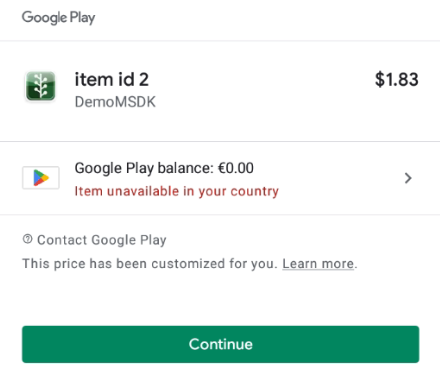
When true, the Play UI includes the disclosure "This price has been customized for you". When false, the UI omits the disclosure.
- Android
- Unity
- Unreal
    PaymentInfoRequestParams.Builder builder = new PaymentInfoRequestParams.Builder();
    builder.setServerId(0);
    builder.setRoleId(0);
    builder.setItemIds(itemIds);
    builder.setAppItemIds(appItemIds);
    builder.setRebateIds(rebateIds);
    builder.setLocalizeProductPrice(true or false);
    builder.setVirtualCurrencyName("Diamond");

    String virtualCurrencyName = "Diamond"; // will be displayed as the title of the purchase page

    PaymentManager.showPurchasePage(this /* activity instance */, virtualCurrencyName, builder.build(), (result, extra) -> {
        // handle purchase result
        if(result.isSuccess()) {
         TransactionInfo info = result.unwrap();
            // handle result
        } else {
         MSDKError error = result.getErrorInfo();
         // deal with error code and error message
         Logger.print(error.toString()); // this line is just an example
        }
        // handle extra info
    });
#if UNITY_ANDROID
    var paymentInfoRequestParams = new GMSDKPaymentAndroid.PaymentInfoRequestParams
    {
        serverId = _serverId,
        roleId = _roleId,
        isOfferPersonalized = true
    };
    GMSDKHandler.PaymentClient.ShowPurchasePage("Diamond", paymentInfoRequestParams, result =>
    {
        if (result.resultCode == ErrorCode.Success)
        {
            //success
        }else
        {
           //handle error
        }
    });

#endif
UMsdkPayment::ShowPurchasePage(int32 ServerId, int32 RoleId, const FString VirtualCurrencyName, bool AllItems, const FString Region = TEXT(""), int32 TopupLimit = 0);
FAQ
- Android
- iOS
If a user chooses to use cash payment methods in Google Play In-App Billing, is there any expiry time for each transaction?
Yes. Users must make payment with cash in 7 days, or the transaction will be canceled by Google Play.
After a user makes payment with cash, Garena Open Platform will need to attribute the purchased goods and acknowledge it to Google Play. Otherwise, Google Play will refund the user after 3 days.
If a guest account has a subscription and binds the guest account to a Google account, would the subscription be transferred as well?
Yes
What currency is shown for Apple In App Purchase?
When only one region is ticked to download/install app in Appstore connect, currency will follow that region's currency. When multiple regions are ticked in Appstore connect, currency will follow apple account's region, not following device language setting.
What is the format of the locale used in the payment APIs?
The locale format used in the payment APIs is {languageCode}_{regionCode}, such as th_TH, en_SG, and id_ID.