Login via Guest
Configuration
- Android
- iOS
- Unity
- Unreal
Configure AndroidManifest.xml
<?xml version="1.0" encoding="utf-8"?>
<manifest xmlns:android="http://schemas.android.com/apk/res/android">

    ...

    <application ...>

        <service
            android:name="com.garena.sdk.android.login.guest.AccountAuthenticatorService"
            android:exported="true">
            <intent-filter>
                <action android:name="android.accounts.AccountAuthenticator" />
            </intent-filter>
            <meta-data
                android:name="android.accounts.AccountAuthenticator"
                android:resource="@xml/authenticator" />
        </service>

            ....
    </application>

</manifest>
Create a authenticator.xml and put it into the res/xml/authenticator.xml folder
<?xml version="1.0" encoding="utf-8"?>
<!--account type should be "com.garena.msdk{your com.garena.sdk.applicationId in the AndroidManifest.xml}{your com.garena.sdk.applicationVariant in the AndroidManifest.xml}"-->
<account-authenticator xmlns:android="http://schemas.android.com/apk/res/android"
    android:accountType="com.garena.msdkXXXXXX"
    android:icon="@drawable/app_logo"
    android:label="@string/app_name"
    android:smallIcon="@drawable/app_logo" />
Usage
If MSDK detects that there is no guest account, it will create a new guest account. Subsequently guest login will use the same guest account, until it is bound to another account successfully.
- Android
- iOS
- Unity
- Unreal
AccountManager accountManager = new AccountManager(activity);
accountManager.login(PlatformType.GUEST, onLoginListener);
[MSDKLoginManager loginWithPlatform:MSDKePlatformGuest completion:^(MSDKLoginRet *loginRet) {
    // handle login result
}];
GMSDKHandler.LoginClient.Login(AccountPlatform.Guest, OnLoginCallback);
UMsdkLogin::Login(EPlatform::Guest);
Delete guest account
This API deletes the current guest session if there is any.
- Android
- iOS
- Unity
- Unreal
accountManager.deleteGuest(); // return UID which was deleted
[MSDKLoginManager resetGuest];
GMSDKHandler.LoginClient.DeleteGuest();
UMsdkLogin::DeleteGuest();
Check if there is a guest account locally
- Android
- iOS
- Unity
- Unreal
accountManager.hasGuestAccount();
[MSDKLoginManager hasGuestAccount];
GMSDKHandler.LoginClient.HasGuestAccount();
UMsdkLogin::HasGuestAccount();
Find back guest account
Guest accounts support recovery after uninstallation
- Android
- iOS
- Unity
- Unreal
accountManager.findBackGuest(result -> {
           if (result.isSuccess()) {
               ...
               accountManager.login(PlatformType.GUEST, onLoginListener)
           } else {
               ...
           }
       });
If you see a log like this
E/com.garena.msdk[5.0.0][com.garena.msdk]java.lang.SecurityException: uid 10456 cannot set user data for accounts of type: com.garena.msdkXXXXXX
It is likely because there are 2 apps in the device which use the same authenticator com.garena.msdkXXXXXX.
The app installed first will have the privilege to use the authenticator, the second installed app does not have that privilege, which led to that error.
Please fully uninstall/remove all data of the related apps from the device then install and try again.
Permission
This permission usage applies only to Android MSDK v5.10.2 and earlier. Starting from Android MSDK v5.11.0, this permission is no longer used due to compliance with Google Play’s updated Photo and Video Permissions Policy https://support.google.com/googleplay/android-developer/answer/14115180?hl=en&sjid=13871168763281969771-AP
For Android MSDK v5.10.2 and earlier: In order to the user can recover the guest account after reinstalling the game, MSDK will request external storage or media storage permission (required only on Android 11 and above).
So MSDK may display such a prompt dialog
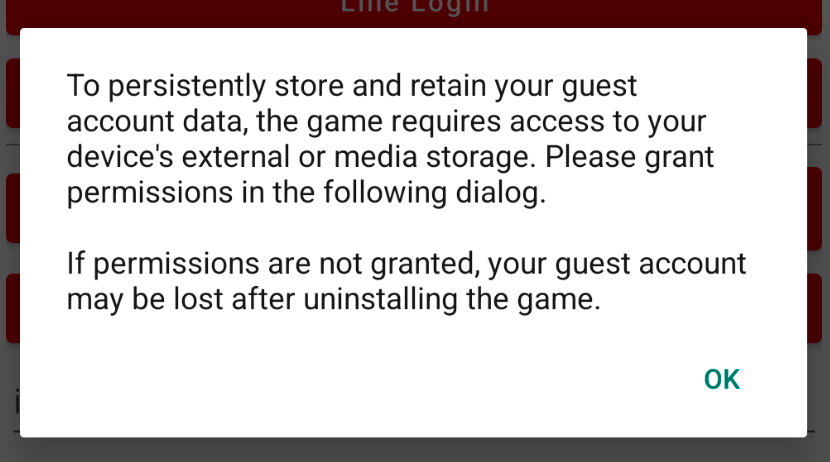
You can disable this prompt dialog using msdkConfigs.setPermissionRationaleDialogEnable
For Android MSDK v5.11.0 and above:
On Android 11 and above, guest account storage uses a new local backup method that does not require any permissions. Players will be navigated to the directory and will need to manually select the backup file to restore their guest account.
On Android 10 and below, MSDK can read the guest account file automatically, so players do not need to manually select the backup file.
Impact of Upgrading from an older MSDK version to v5.11.0+:
- Existing guest users will not be able to recover their accounts after reinstalling the game.
- No impact to existing guest users if the game is not uninstalled.
GMSDKHandler.LoginClient.FindBackGuest(rsp =>
{
    if (rsp.resultCode == ErrorCode.Success)
    {
        GMSDKHandler.LoginClient.Login(AccountPlatform.Guest, OnLoginCallback);
    }
    else
    {
        ...
    }
});
Sharing guest user credential among apps
- Android
- iOS
It is automatically implemented within the MSDK and no additional configuration is required.
- Configure app group settings in capabilities and entitlements.
- Add AppGroup field in info.plist
FAQ
- iOS
Will the game lose guest accounts on iOS after an App Transfer?
App Transfer refers to the process of transferring ownership of an app from one Apple Developer account to another account.
Guest account data is stored in two locations: Keychain and UserDefaults/Documents. During an App Transfer, guest account data stored in the Keychain will be lost. However, data in UserDefaults/Documents will remain unless the app is uninstalled. So after an app transfer:
- If the player installs the new version over the existing one —— The guest account will remain intact, as the data in UserDefaults/Documents is preserved.
- If the player uninstalls the old version before installing the new version —— The guest account will be lost. Keychain data will be wiped during the transfer, and UserDefaults/Documents data will be deleted when the app is uninstalled.
Migrate Keychain Data (Login Sessions and Guest Credentials) to a Target Keychain Group
If your app is accidentally sharing the same default keychain group as other apps in the same Apple Developer account, its login sessions and guest credentials can be overwritten, causing guest account loss. Likewise, changing to a new unique default keychain group without migration can also result in existing guest account loss.
Migration makes sure all keychain data is moved into the new, correct, app-specific keychain group, preventing guest account loss.
Step 1: Switch to a Unique Default Keychain Group
The default keychain group is the first entry in Keychain Access Groups. It's recommended to use the app bundle id as the default keychain group.
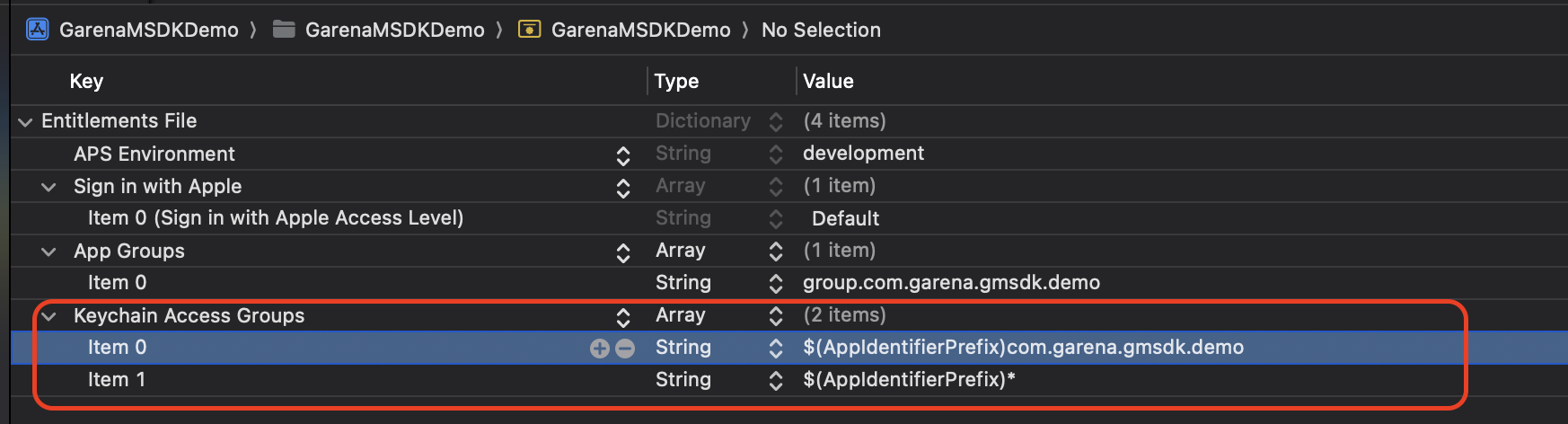
For details on configuring keychain sharing, see Apple’s documentation: https://developer.apple.com/documentation/xcode/configuring-keychain-sharing?language=objc
Step 2: Retain the Previous Default Keychain Group in Keychain Access Groups
This ensures that data stored in the previous default keychain group remains accessible for migration.
Step 3: Configure GOPKeychainMigrationDstGroup in Info.plist
Set the value to the new default keychain group (must exactly match the first entry in the keychain-access-groups entitlement). If this key is absent or mismatched, MSDK will not trigger migration, risking data loss.
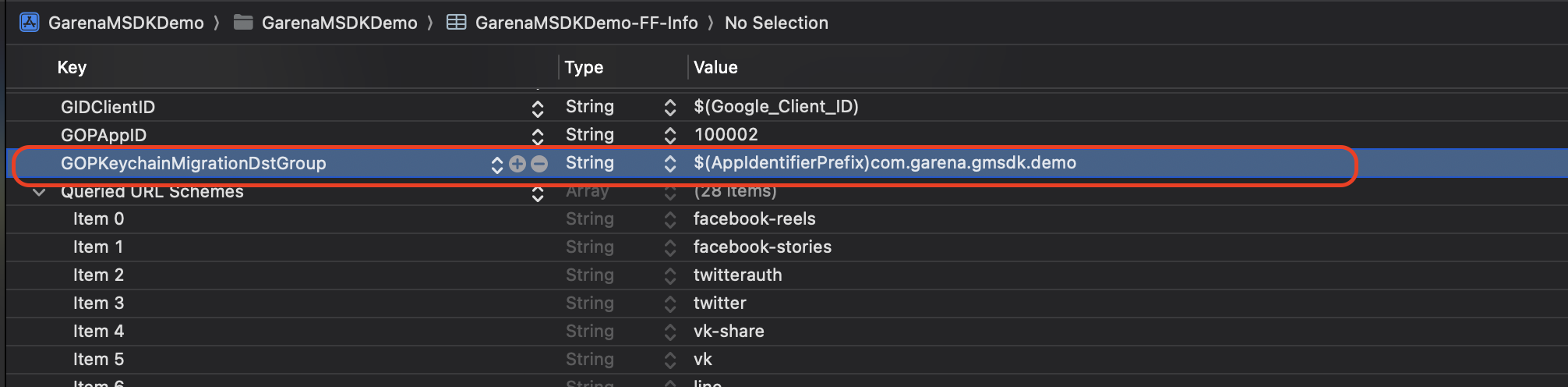
Step 4: Verify the Default Keychain Group in the IPA File
Convert the .ipa file into a .zip archive and extract it:
mv app.ipa app.zip
unzip app.zip // results in a Payload folder
codesign -d --entitlements :-  Payload/{AppName}.app
You should see output similar to the following. Check the keychain-access-groups section: the new default keychain group should appear first, followed by the previous default keychain group.
<?xml version="1.0" encoding="UTF-8"?><!DOCTYPE plist PUBLIC "-//Apple//DTD PLIST 1.0//EN" "https://www.apple.com/DTDs/PropertyList-1.0.dtd"><plist version="1.0"><dict>
  <key>application-identifier</key>
  <string>TT2N7PPCM7.com.garena.beetalk.sdkdemo.BeeTalkSDKDemo.enterprise</string>
  <key>aps-environment</key>
  <string>production</string>
  <key>com.apple.developer.associated-domains</key>
  <array><string>applinks:devconnect.garena.com</string></array>
  <key>com.apple.developer.team-identifier</key>
  <string>TT2N7PPCM7</string><key>com.apple.security.application-groups</key>
  <array><string>group.com.garena.beetalk.sdkdemo.enterprise</string></array>
  <key>get-task-allow</key><false/>
  <key>keychain-access-groups</key>
  <array>
    <string>TT2N7PPCM7.com.garena.gmsdk.demo</string> <!-- new default keychain group -->
    <string>TT2N7PPCM7.*</string>                     <!-- previous default keychain group -->
  </array></dict></plist>